
Structure of a Joomla! User Profile
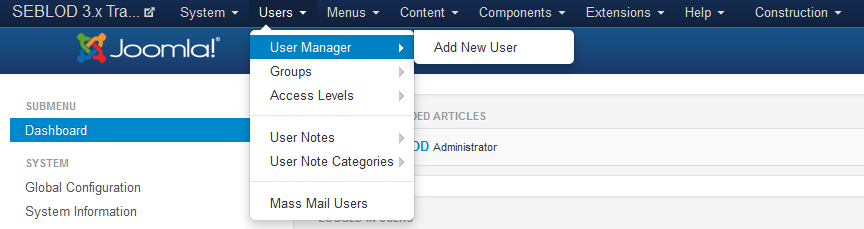 To show the structure of a Joomla! user profile, let click on "Users", "User Manager" then "Add New User".
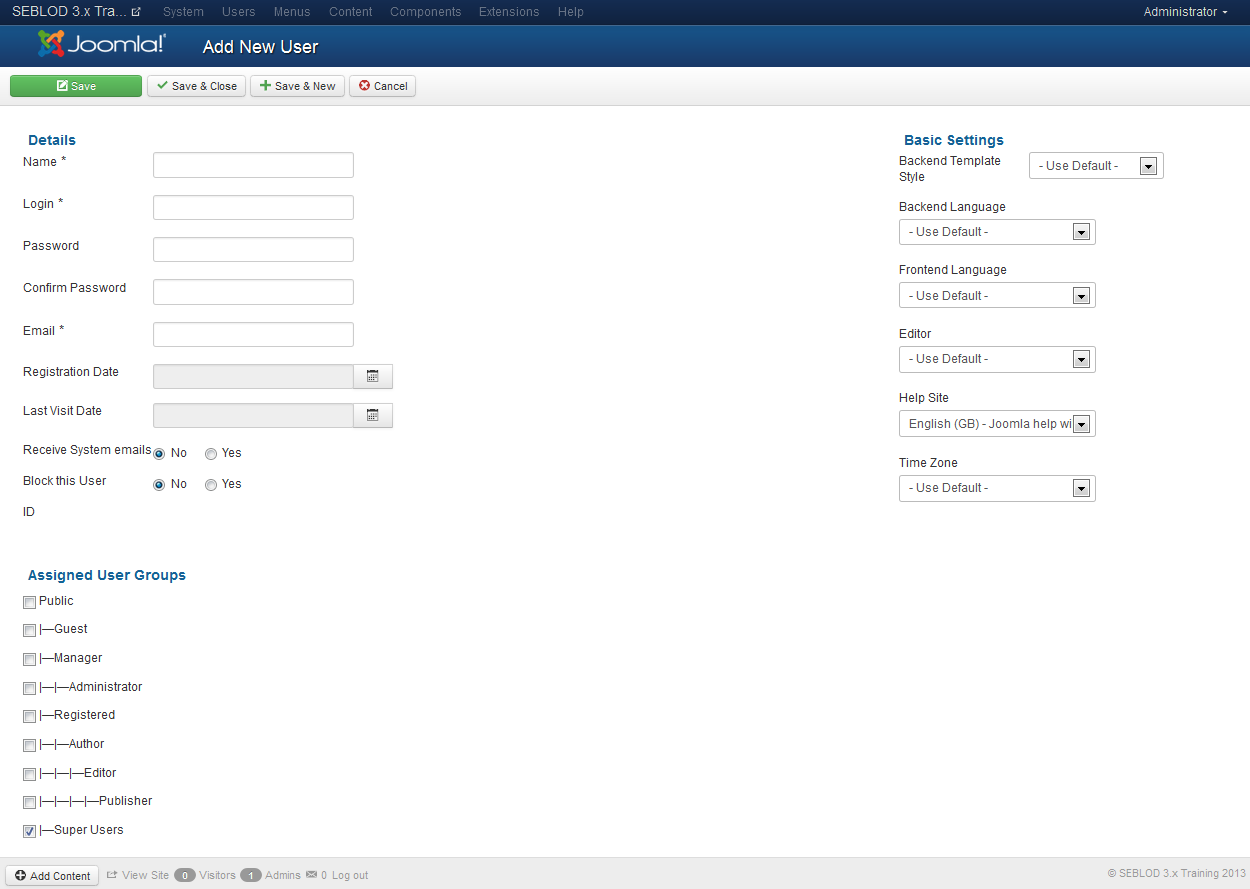 As you can see in this image, a Joomla! user profile is essentially (not only) composed of four main fields : "Name", "Login" "Password" and "Email".
Look at how we will customize this structure by adding three custom fields.
How SEBLOD manages a form of Joomla! user
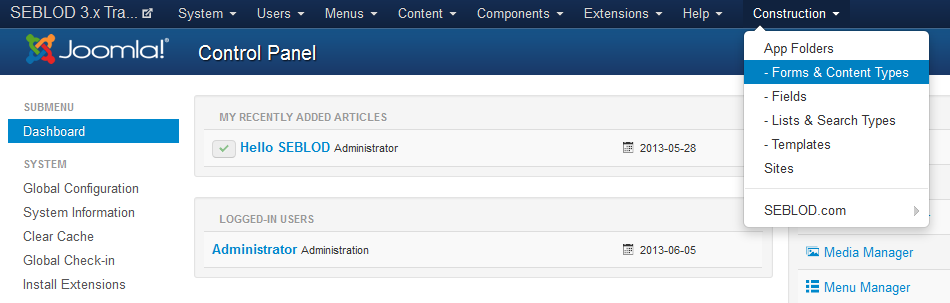 click on admin menu link "Construction" then "Forms & Content Types".
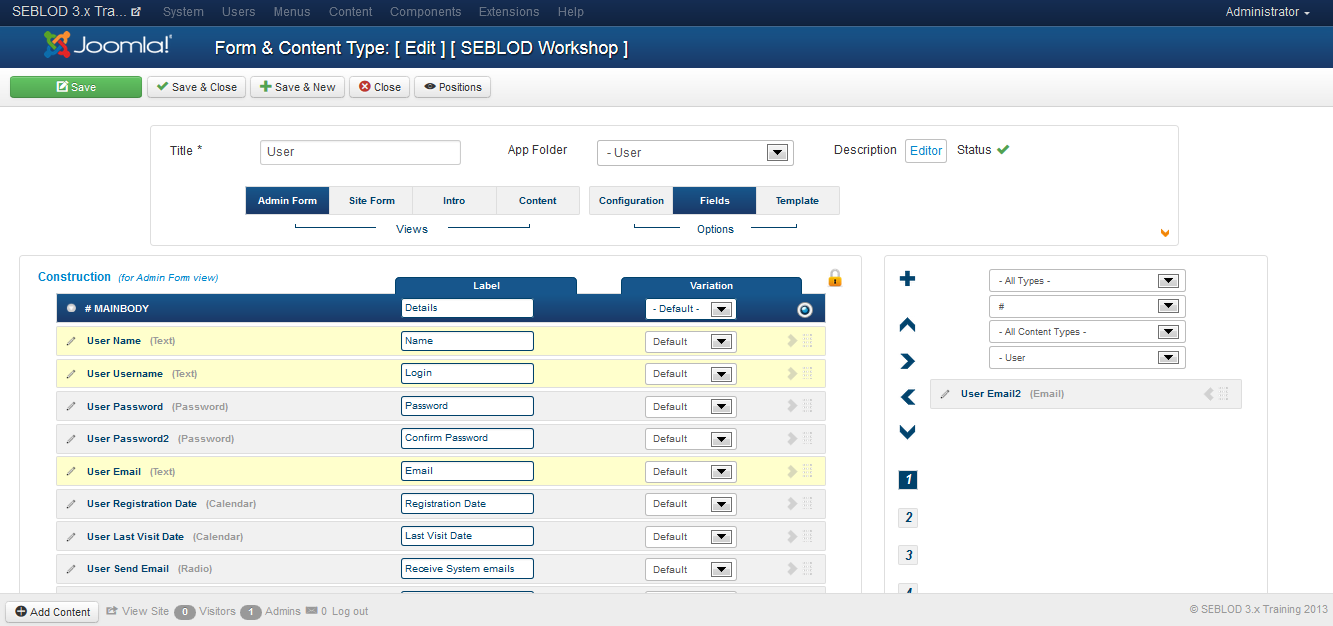
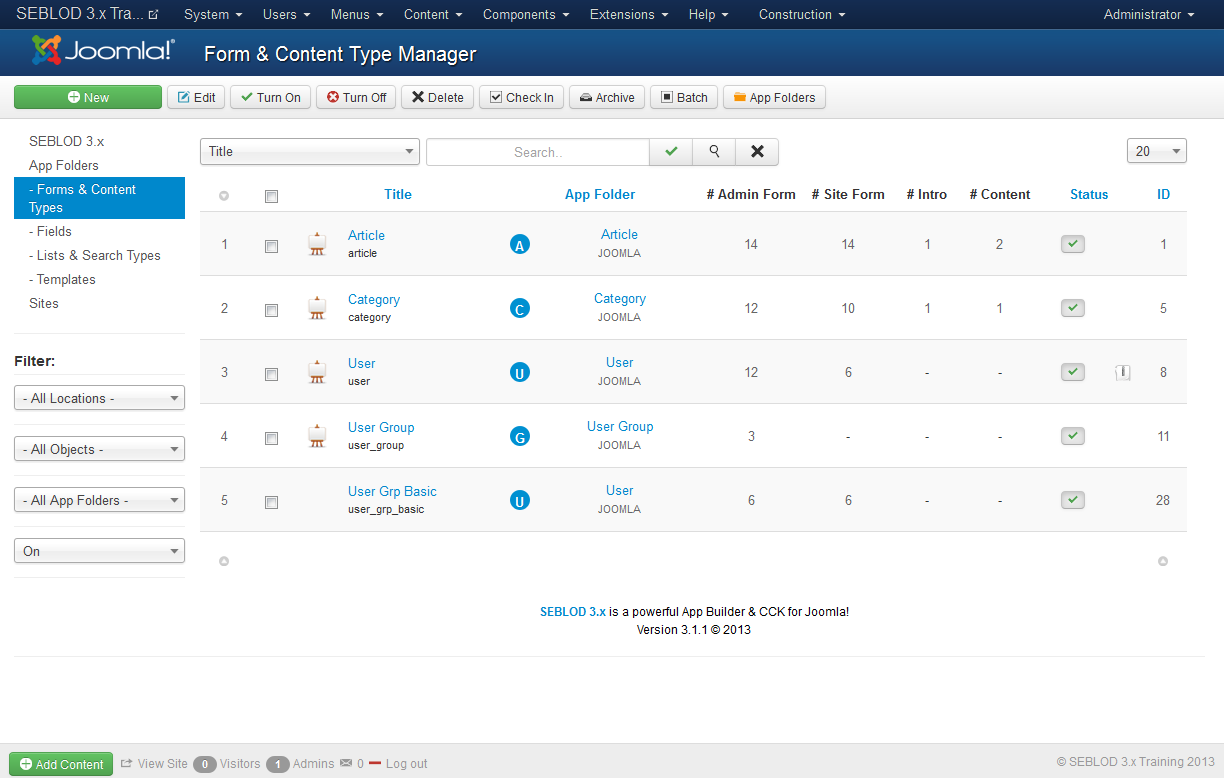 In the "Form & Content Type Manager", you should click on the item "User"
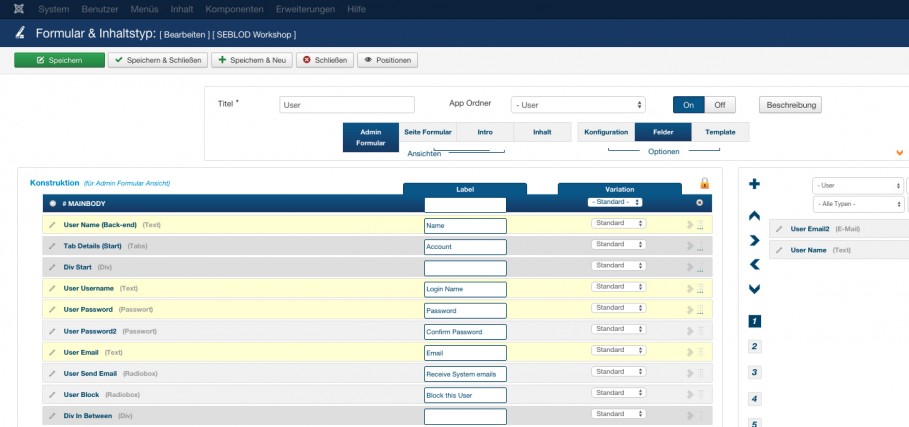
So, we have the correspondences between:
- SEBLOD field "User Name" and the form field "Name"
- SEBLOD field "User Username" and the form field "Login"
- SEBLOD field "User Password" and the form field "Password".
- SEBLOD field "User Email" and the form field "Email".
Let's look at how to add 3 custom fields to the content type "User".
Add 3 custom fields, the process
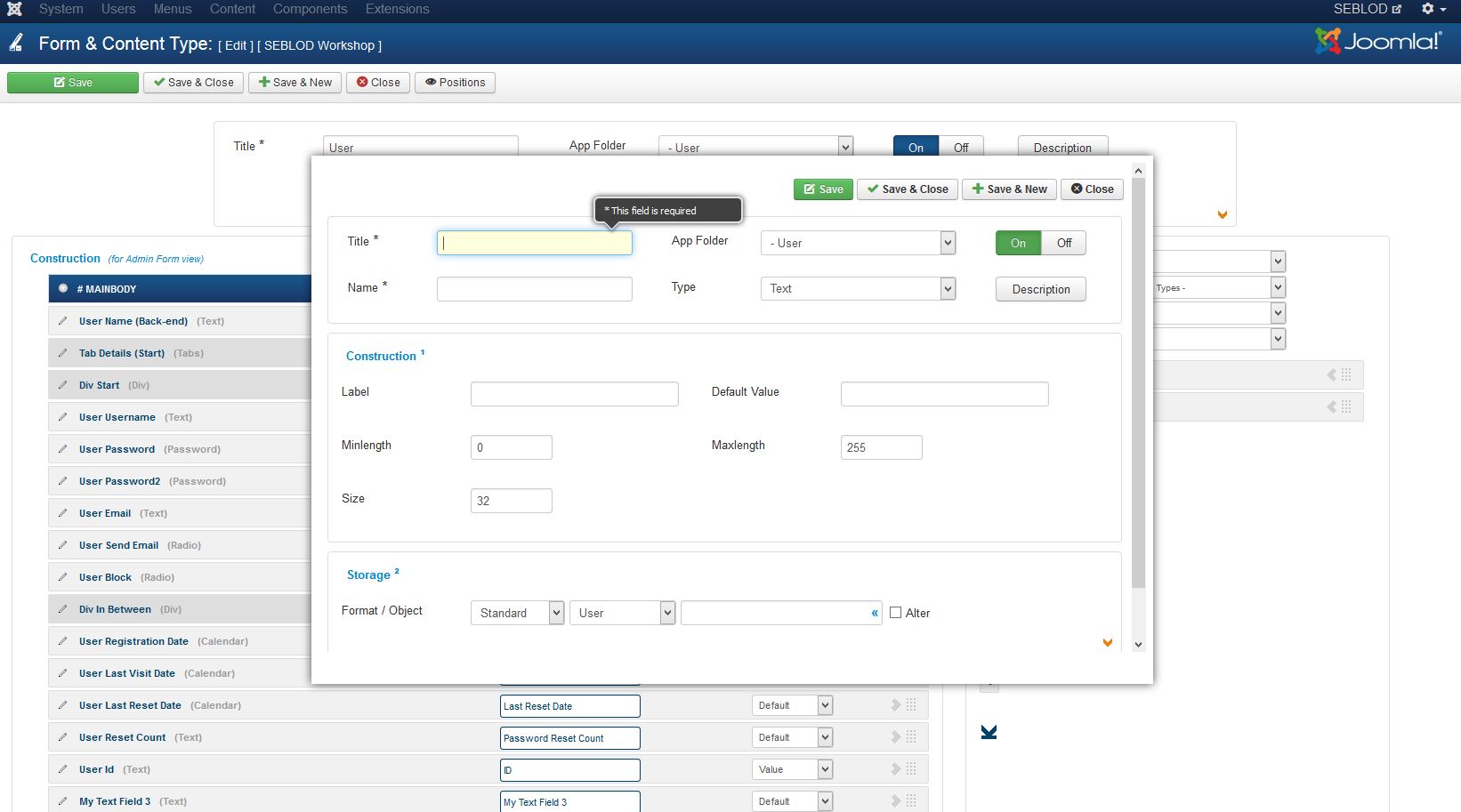
Adding a Text field
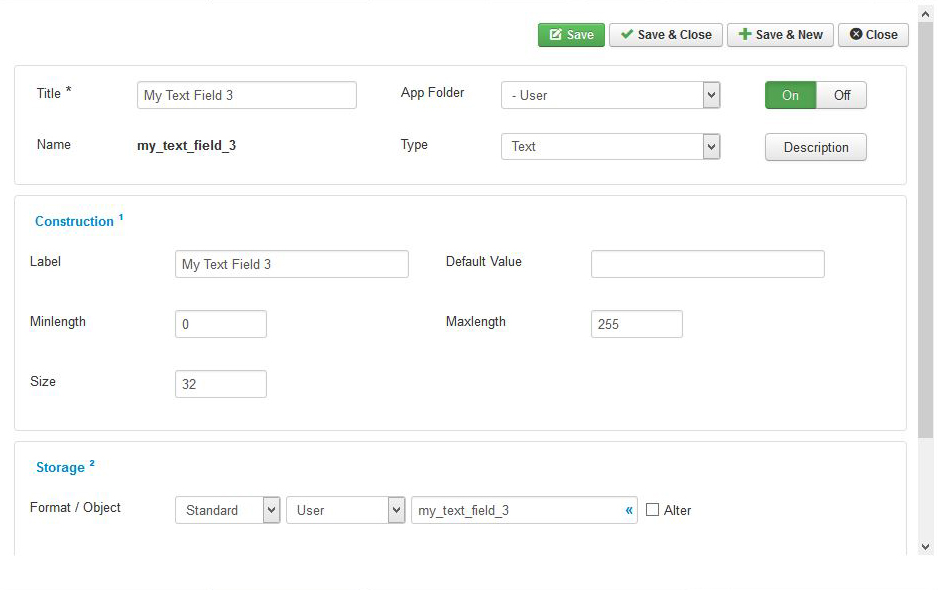 To add a "Text" field to the "User" content type:
- set a field "Title", for example "My Text Field"
- set a field "Label", for example "My Text Field"
- select a field "Type": of course a "Text" option of the Type setting
- click on button "Save & New" to add the next field.
Adding a "Select Simple" (Dropdown) field
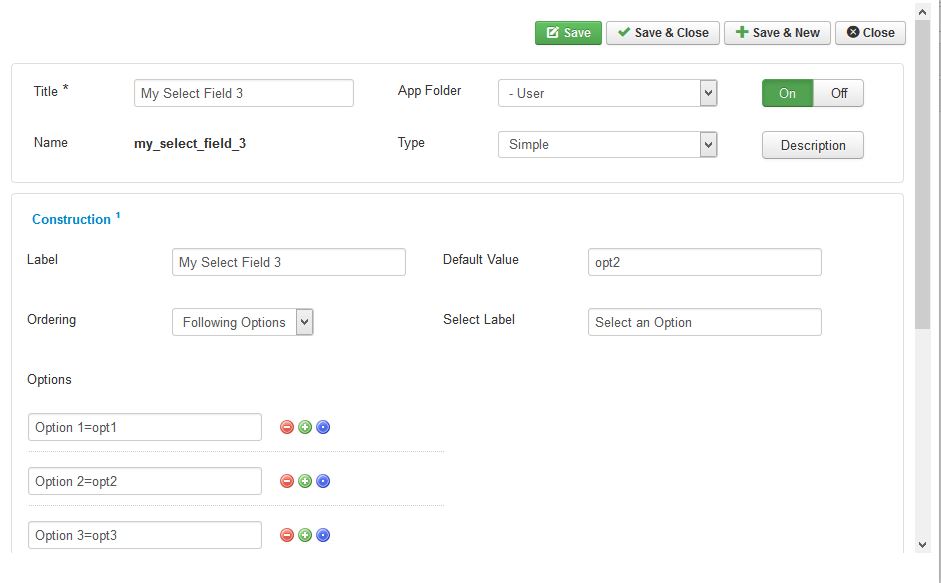 To add a "Select Simple" field to the "User" content type:
- set a field "Title", for example "My Dropdown Field"
- set a field "Label", for example "My Dropdown Field"
- select a field "Type": of course a "Select Simple" option of the Type setting
- set "options" to this "Select Simple" field: for example "Option 1=opt1", "Option 2=opt2" and "Option 3=opt3" options. The text before the = is the text that will display in the select options. The text after the = is the value that will be stored in the database.
- click on button "Save & New" to add the next field.
Adding a Radio field
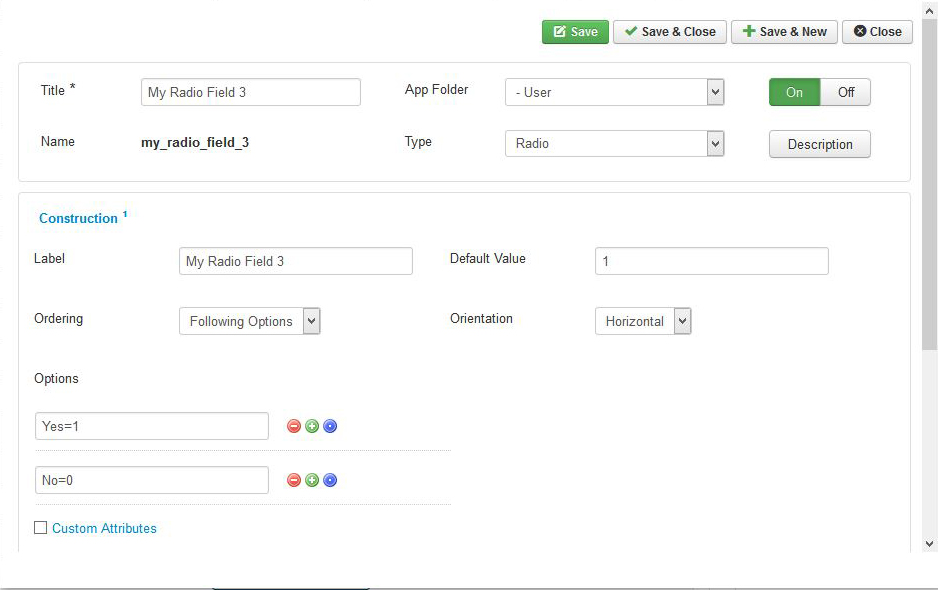 To add a Radio field to the "User" content type:
- set a field "Title", for example "My Radio Field"
- set a field "Label", for example "My Radio Field"
- select a field "Type": of course a "Radio" option of the Type setting
- set "options" to this "Radio" field: for example "Yes=1" and "No=0" options. The text before the = is the text that will display next to the radio buttons. The text after the = is the value that will be stored in the database.
- click on button "Save & Close".
Result after adding fields
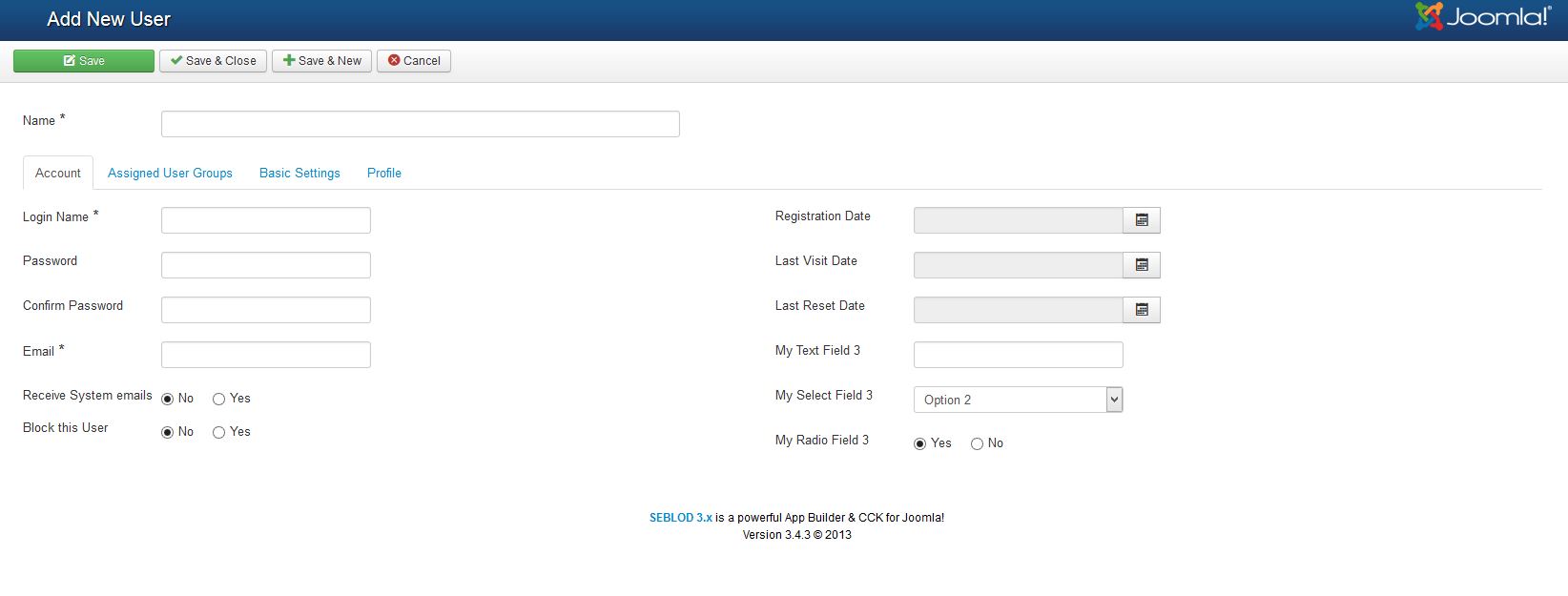
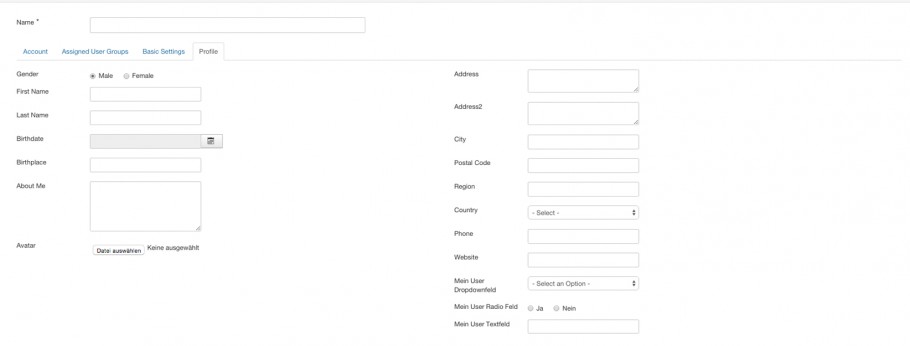
The resulted form after adding this 3 custom fields is illustrated in the following image
In diesem Beitrag beschreiben wir, wie Sie ein Joomla! Benutzerprofil an Ihre Bedürfnisse anpassen. Als Beispiel fügen wir drei benutzerdefinierte Felder hinzu.
Die Struktur eines Joomla! Benutzerprofiles
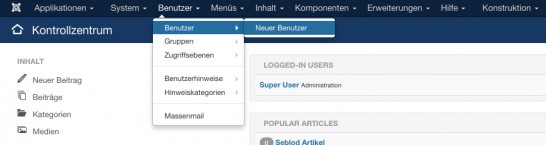
Sehen Sie sich zunächst die Struktur eines Joomla! Benutzerprofils an. Klicken Sie im Joomla! Adminmenü auf "Benutzer" > "Benutzer" > "Neuer Benutzer"
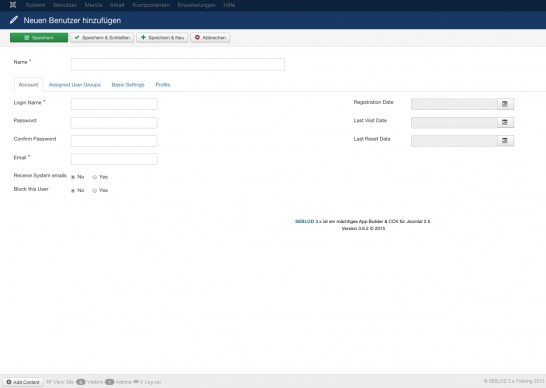
Wie Sie im Bild sehen, verfügt ein Joomla! Benutzerprofil (nicht nur) über die Felder "Name", "Benutzername", "Passwort" und "E-Mail" um einen Benutzer hinzuzufügen. Nun zeigen wir Ihnen, wie Sie die Struktur an Ihre Bedürfnisse anpassen können indem Sie drei eigene Eingabefelder hinzufügen.
So verwaltet SEBLOD ein Joomla! Benutzerprofil
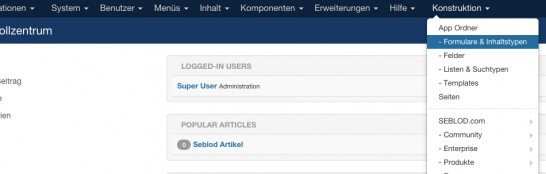
klicken sie im Adminmenü auf "Konstruktion" und anschließend direkt auf "Formular & Inhaltstypen"
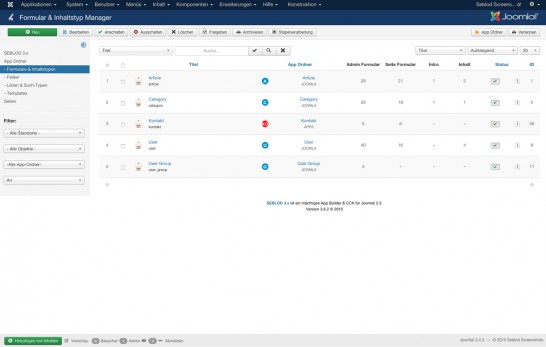
In der "Formular & Inhaltstypen Übersicht" klicken Sie auf "User"
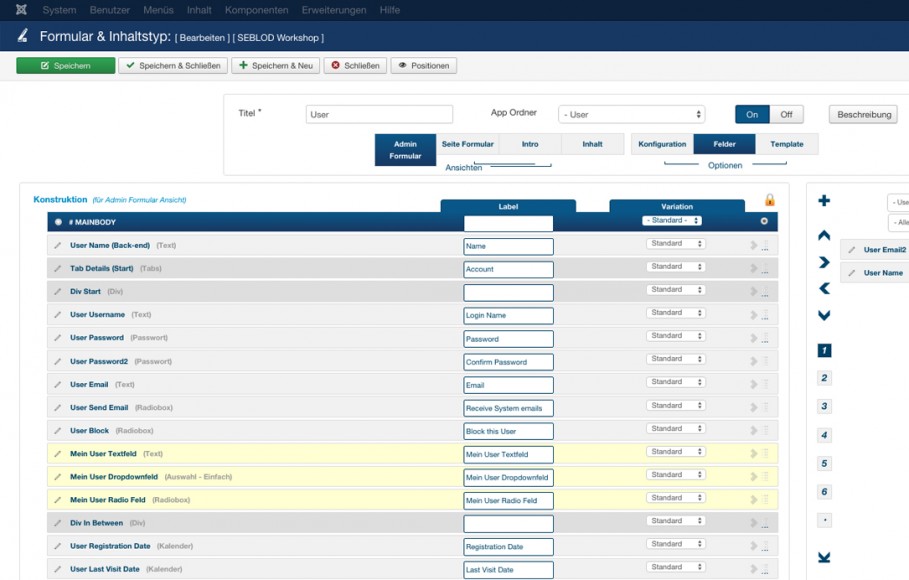
Wie Sie im Bild sehen, ist jedes Feld des Joomla Benutzerprofil auf dieser Seite vertreten. Die wichtigsten Felder: Name, Benutzername, Passwort und E-Mail haben wir für das Bild gelb markiert.
Die Felder korrespondieren wie folgt miteinander:
- SEBLOD Feld "User Name" und das Eingabefeld "Name"
- SEBLOD Feld "User Username"und das Eingabefeld "Benutzername"
- SEBLOD Feld "User Password" und das Eingabefeld "Passwort"
- SEBLOD Feld "User Email" und das Eingabefeld "E-Mail"
So fügen Sie nun drei benutzerdefinierte Felder in den Inhaltstyp "User" ein.
Ablauf
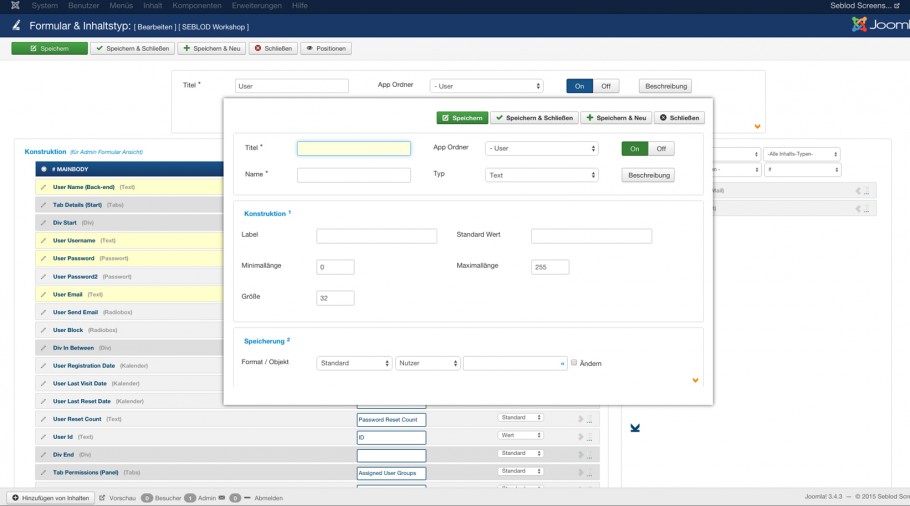
Textfeld hinzufügen
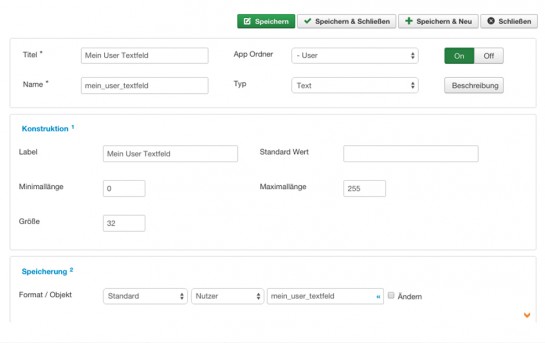
"Text" Eingabefeld zum Inhaltstypen "User" hinzufügen:
- Füllen Sie das Feld Titel aus -> zum Beispiel "Mein User Textfeld"
- Füllen Sie das Feld Beschriftung aus-> zum Beispiel "Mein User Textfeld"
- Wählen Sie eine Feldart, in diesem Fall "Text".
- Klicken Sie auf "Speichern und Neu" um das nächste Feld hinzuzufügen.
"Select Simple" (Dropdown) Feld hinzufügen
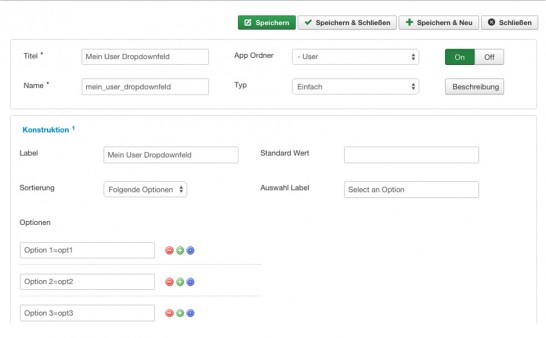
"Select Simple" Eingabefeld zum Inhaltstypen "User" hinzufügen:
- Füllen Sie das Feld Titel aus -> zum Beispiel "Mein User Dropdownfeld"
- Füllen Sie das Feld Beschriftung aus-> zum Beispiel "Mein User Dropdownfeld"
- Wählen Sie eine Feldart, in diesem Fall "Select Simple".
- Setzen Sie die Optionen -> zum Beispiel "Option 1=opt1", "Option 2=opt2" und "Option 3=opt3". Der Text vor dem = ist der text der in den Auswahloptionen erscheint, der Text nach dem 0 ist der Wert, der in der Datenbank gespeichert wird.
- Klicken Sie auf "Speichern und Neu" um das nächste Feld hinzuzufügen.
"Radio" Feld hinzufügen
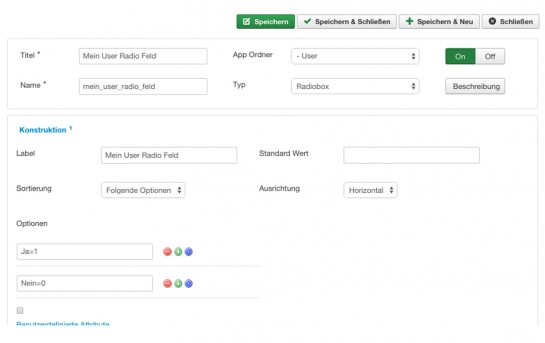
"Radio" Eingabefeld zum Inhaltstypen "Category" hinzufügen:
- Füllen Sie das Feld Titel aus -> zum Beispiel "Mein User Radiofeld"
- Füllen Sie das Feld Beschriftung aus-> zum Beispiel "Mein User Radiofeld"
- Wählen Sie eine Feldart, in diesem Fall "Radio".
- Setzen Sie die Optionen -> zum Beispiel "Ja=1" und "Nein=0". Der Text vor dem = ist der text der in den Auswahloptionen erscheint, der Text nach dem 0 ist der Wert, der in der Datenbank gespeichert wird.
- Klicken Sie auf "Speichern und schließen".
Ergebnis nach dem Hinzufügen der Felder
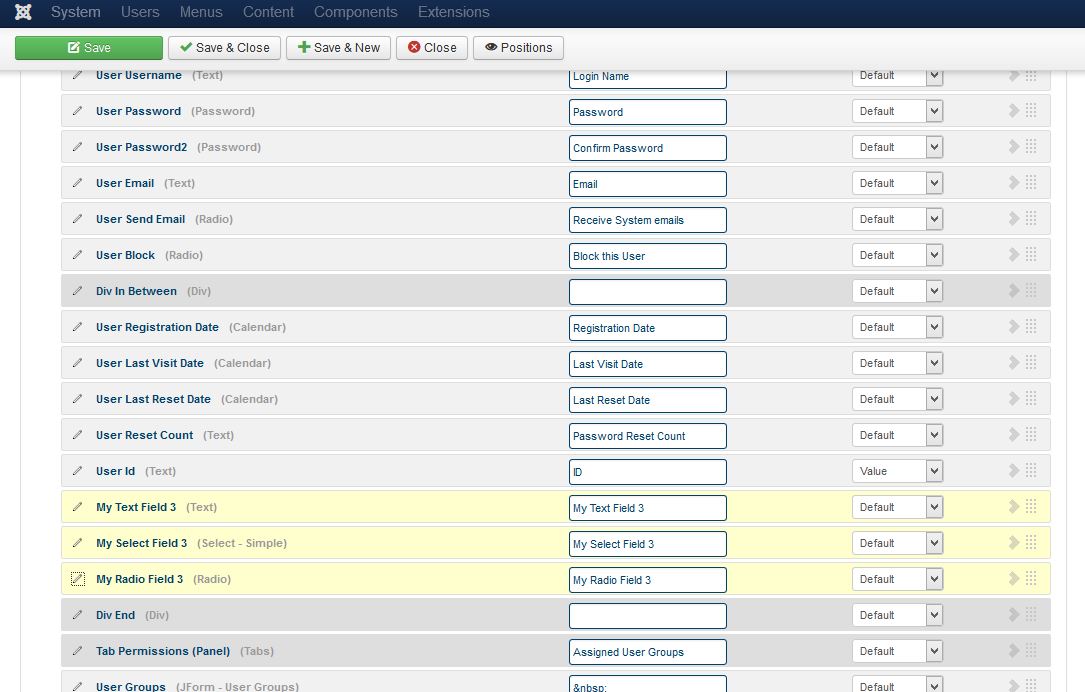
Nach dem Hinzufügen sehen Sie drei neue Zeilen im Bereich des "User" Inhaltstypen. Diese neuen Zeilen haben wir zur besseren Orientierung im Bild gelb markiert
Wenn Sie nun den Inhaltstypen speichern und schließen und einen neuen User hinzufügen, werden diese Felder unter den Tag-Eingabefeldern angezeigt.
Dans cet article, nous décrivons comment personnaliser un profil utilisateur Joomla! en ajoutant 3 champs personnalisés.
Structure d'un profil utilisateur Joomla!
Pour visualiser la structure d’un profil utilisateur
Joomla!, cliquez sur "Users", "User Manager" puis "Add
New User".Comme vous pouvez le voir sur cette image, un profil
utilisateur Joomla! est composé essentiellement (et pas seulement) de 3 champs
principaux : "Name", "Login", "Password" et "Email".Regardez comment nous allons personnaliser cette structure en ajoutant 3 champs personnalisés.
Comment SEBLOD gère un formulaire d'utilisateur Joomla!
cliquez
sur lien de menu admin "Construction", puis "Forms
& Content Types".Dans
"Form & Content Type Manager", vous devez cliquer sur l'élément
"User"Comme vous pouvez le voir dans l'image ci-dessous, chaque champ de formulaire est présent sur le côté "Content Type". Les plus importants: les champs "Name", "Login" et "Email" sont indiqués en jaune dans l'image.
Donc, nous avons les correspondances entre:
- Le champ SEBLOD " User Name" et le champ de formulaire "Name"
- Le champ SEBLOD " User Username" et le champ de formulaire "Login"
- Le champ SEBLOD "User Password" et le champ de formulaire "Password"
- Le champ SEBLOD "User Email" et le champ de formulaire "Email"
Voyons comment ajouter 3 champs personnalisés au type de contenu "User".
Ajouter 3 champs personnalisés, le processus
Pour ajouter 3 champs personnalisés au type de contenu "User", cliquez sur le bouton "+" (le bouton "+" est situé à droite du bloc "Construction"). Un formulaire dans la fenêtre pop-up apparaît
Ajouter un champ texte
Pour ajouter un champ "Text" à un type de contenu "User":
- définissez un champ "Title", par exemple "My Text Field"
- définissez un champ "Label", par exemple "My Text Field"
- sélectionnez un champ "Type": bien sûr une option "Text" du paramètre Type
- cliquez sur le bouton "Save & New" pour ajouter le champ suivant.
Ajouter un champ "Select Simple" (Dropdown)
Pour ajouter un champ "Select Simple" à un type de contenu "User":
- définissez un champ "Title", par exemple "My Dropdown Field"
- définissez un champ "Label", par exemple "My Dropdown Field"
- sélectionnez un champ "Type": bien sûr une option "Select Simple" du paramètre Type
- définissez "Options" dans ce champ "Select Simple": par exemple "Option 1 = opt1", "Option 2 = opt2" et "Option 3 = OPT3". Le texte avant le signe = est le texte qui sera affiché dans les options choisies. Le texte après le signe = est la valeur qui sera stockée dans la base de données.
- cliquez sur le bouton "Save & New" pour ajouter le champ suivant.
Ajouter un champ Radio
Pour ajouter un champ Radio au type de contenu "User":
- définissez un champ "Title", par exemple "My Radio Field"
- définissez un champ "Label", par exemple "My Radio Field"
- sélectionnez un champ "Type": bien sûr une option "Radio" du paramétrage Type
- définissez "Options" dans ce champ "Radio": par exemple "Yes = 1" et "No = 0".Le texte avant le signe = est le texte qui sera affiché à côté des boutons de radio. Le texte après le signe = est la valeur qui sera stockée dans la base de données.
- cliquez sur le bouton "Save & Close".
Résultat après l'ajout de champs
Après cet ajout, trois nouvelles lignes apparaissent dans le type de contenu "User" (voir les 3 lignes jaunes dans l'image ci-dessous)
Le formulaire obtenu après l’ajout de ces 3 champs personnalisés est illustré dans l’image suivante.