
Integrating SEBLOD with third party content display modules
SEBLOD operates as a layer on top of Joomla. Part of this functionality is evident in the way that 'SEBLOD content' is referenced in the main ##_content table of Joomla. If you open your database and look in the ##_content table you'll see that in the introtext and fulltext columns there are SEBLOD tags for content items that have been added with SEBLOD. These tags look something like ::cck::12::/cck::::introtext::::/introtext::... or ::cck::12::/cck:: where the number "12" is a reference to the ID of the content which is stored in other SEBLOD tables.
In the front end of your website when the content is displayed, these tags are read by SEBLOD, which then replaces this string with the actual SEBLOD HTML defined in your SEBLOD Content or Intro view. In the case of displaying your content in a third-party content display module (like a news scroller), the tag will be replaced with the rendered HTML from your fields defined in your Content Type's Intro View.
When you are trying to use a third-party module to display some content, such as one of Gavick's modules like the News Show Pro module, the whole SEBLOD tag in the introtext column needs to be readable, otherwise the content won't be rendered properly. A common compatibility problem is that these modules are designed to display a snippet of introtext content of a certain length (e.g. 50 characters) and then cut the rest off. When this character limit severs the SEBLOD tag, your content will not be rendered properly, and you will likely see the half-completed tag in your module - like ::cck::12::/cck::::introte...
.
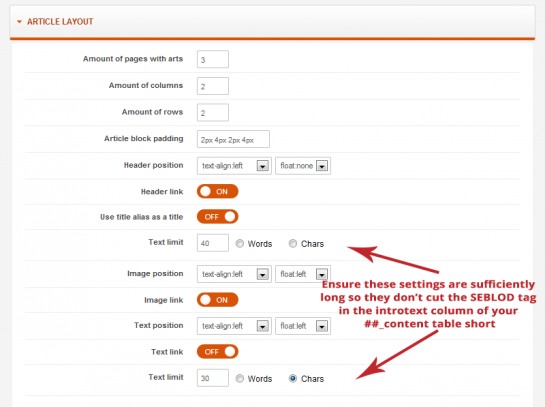
Some example settings from the Gavick Show Pro module - ensure the text limit settings are long enough so they don't cut the SEBLOD tag short.
If you are having troubles with your content rendering correctly in a third party module, it is most likely that the module is cutting the introtext string short and breaking the SEBLOD tag prematurely. To fix, check your module parameters to see if there is a setting where you can change the string length to be sufficiently long to not cut off the introtext prematurely.
To reduce the change of having an issue with your introtext string being cut short, it is advised to use "standard" storage instead of "custom" storage. Custom SEBLOD storage involves using a lot more tags around content, which can easily be cut short and ruin the rendering of your content.